
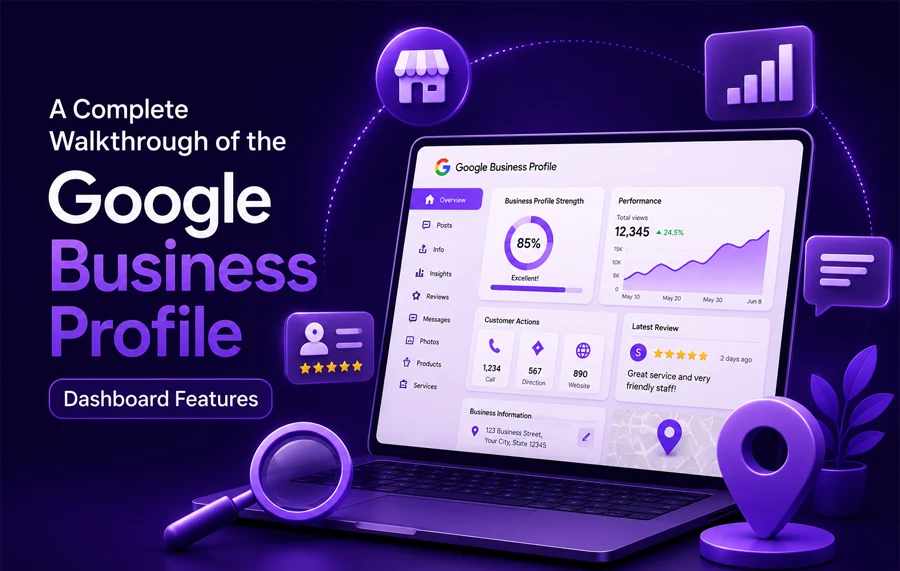
A Complete Walkthrough of the Google Business Profile Dashboard Features
Introduction
If someone searches for your business today, what do they see? For most local businesses restaurants, salons, clinics, shops, and service providers the answer is whatever shows up on Google Search and Google Maps. That’s where the Google Business Profile dashboard comes in. It’s the free control panel Google gives business owners to manage exactly how their business appears online, and understanding it properly can make the difference between getting found and getting skipped.
This guide walks through every corner of the dashboard, step by step, so even a first-time user can open it with confidence.
What is the Google Business Profile Dashboard?
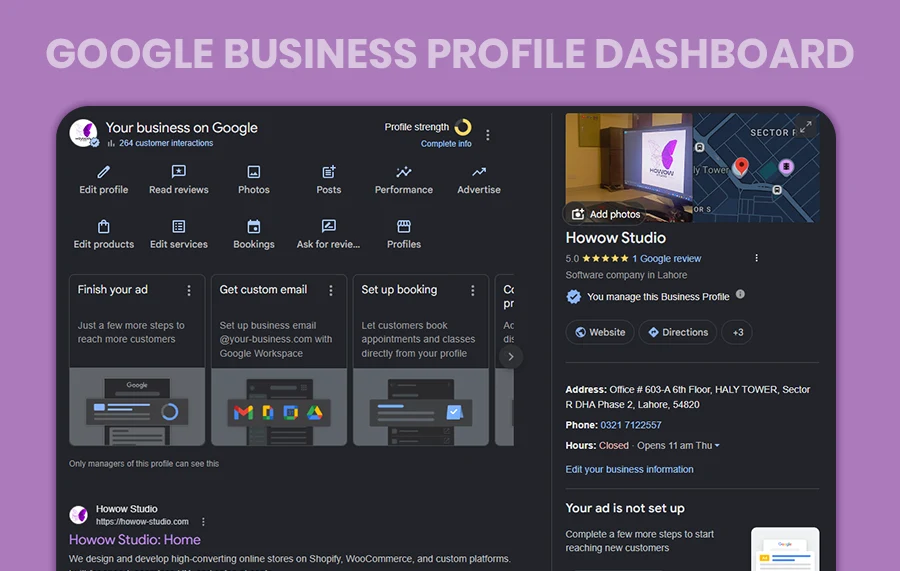
In simple words, the Google Business Profile dashboard is the home base for your business’s presence on Google. It’s where you manage your business information, photos, reviews, products, services, posts, and performance all from one place. Think of it as the admin panel behind your Google Maps pin and the business card that shows up in search results.
How to Access the Google Profile Dashboard
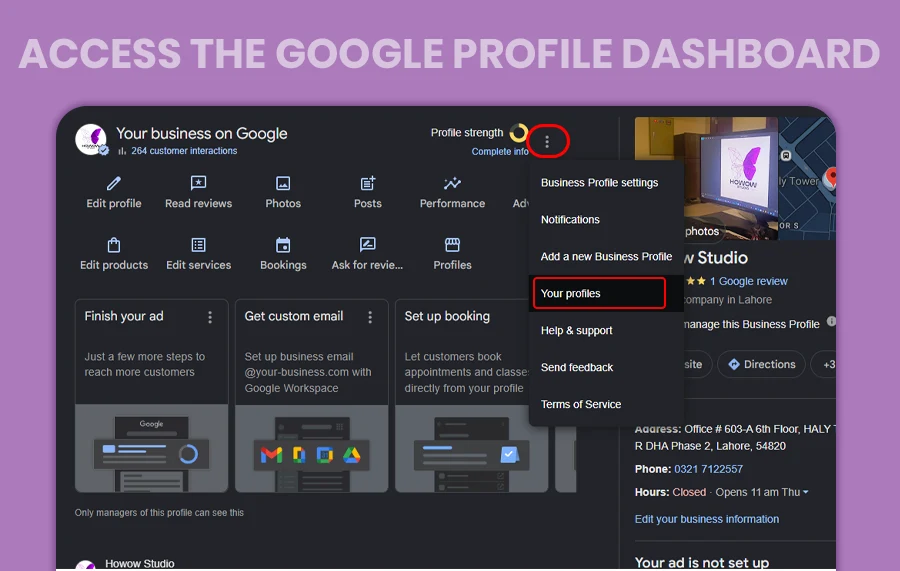
You can reach your dashboard a few different ways:
- Search your business name on Google Search and click “Manage now” if it appears.
- Open Google Maps, find your listing, and select the same option.
- Go directly to Business Profile Manager and sign in.
Always sign in with the Google Account connected to your business profile using the wrong account is one of the most common access mistakes beginners make.
Business Information Section
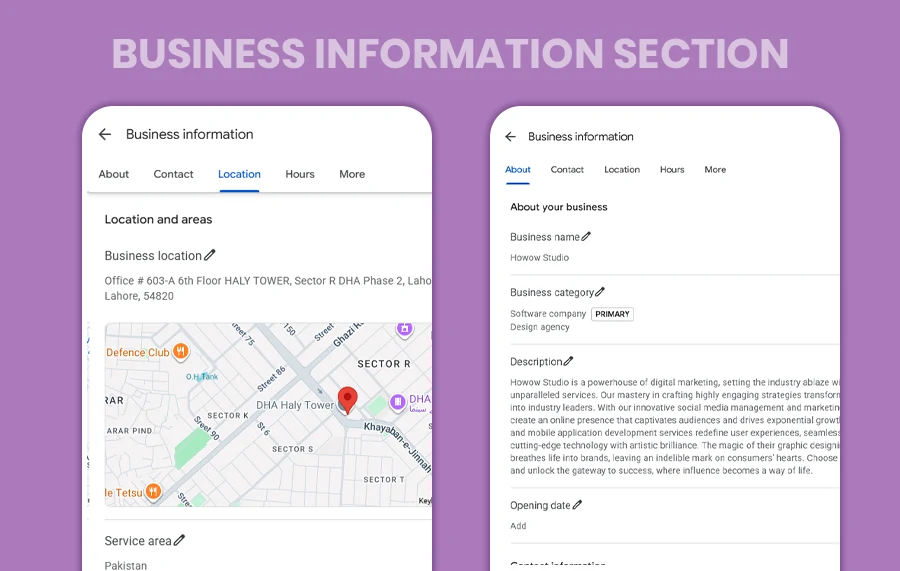
This is the foundation of your listing. Here you’ll manage:
- Business name
- Category
- Address
- Phone number
- Website
- Opening hours
- Service areas
Every detail here should match what’s on your actual storefront and website exactly, since inconsistent information confuses both customers and Google’s ranking system.
Products and Services Section
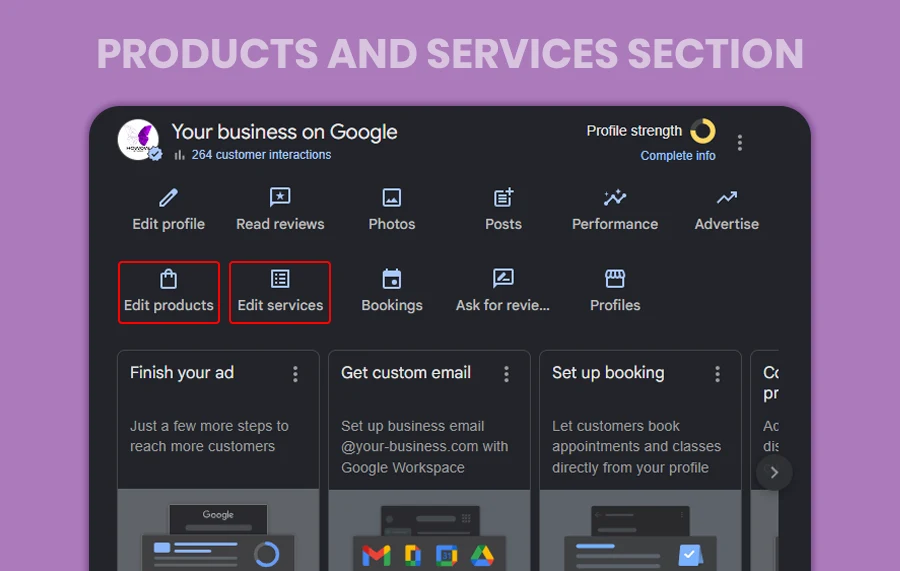
The dashboard lets you list what you actually sell individual products for retail businesses, or specific services for service-based ones. Adding this section helps customers understand your offerings before they even click through, which builds trust and reduces unnecessary calls asking “do you sell/do X?”
Photos and Videos Section
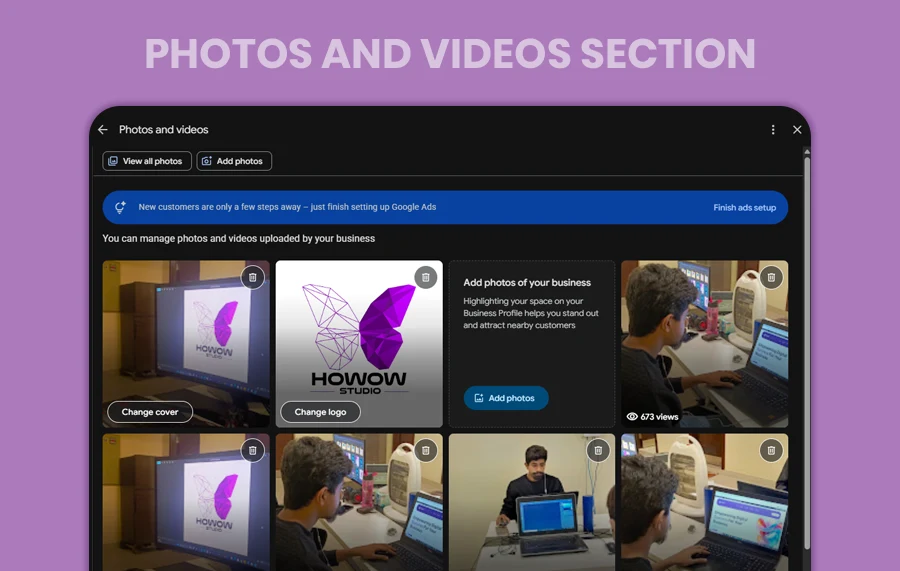
People trust what they can see. Uploading real photos your storefront, products, team, clinic interior, menu, or completed work makes your profile feel active and credible. Profiles with quality photos consistently get more clicks and direction requests than profiles with none.
Reviews Section
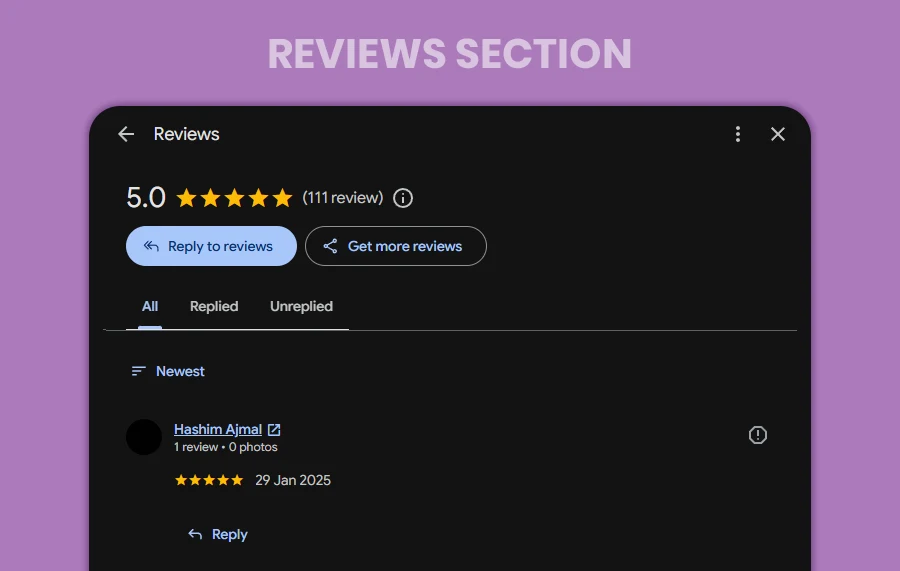
Here you can read every customer review and reply directly. Responding especially to negative reviews shows professionalism and often works in your favor with future customers. Reviews are also one of the strongest local SEO trust signals Google considers.
Posts and Updates
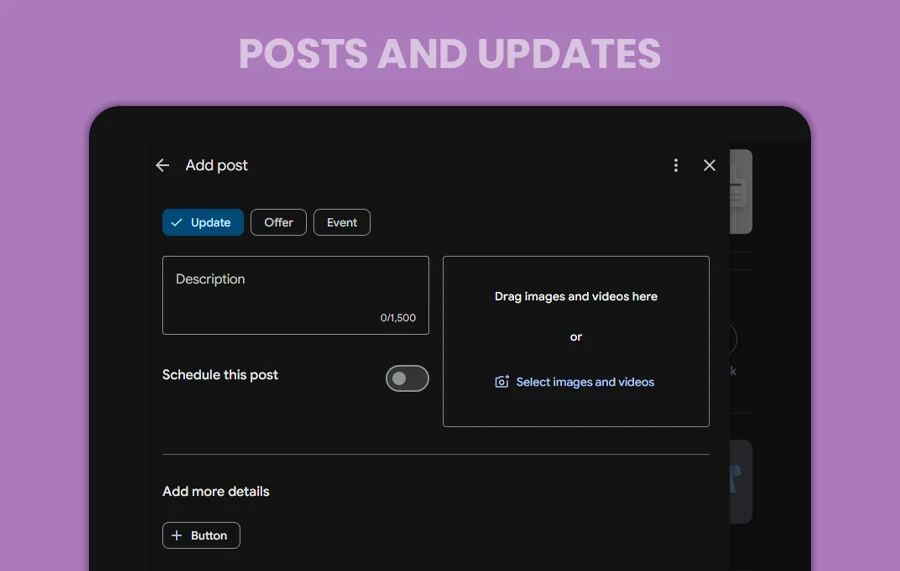
This feature works like a mini social feed attached to your listing. Use it to share offers, events, new arrivals, or general announcements. Regular posting signals to Google (and to customers browsing your profile) that your business is active.
Messages and Customer Interaction
Some profiles allow customers to message the business directly through the dashboard. If you enable this, fast and professional replies matter slow responses can cost you a customer who’s already comparing you to competitors.
Google Business Profile Performance and Insights
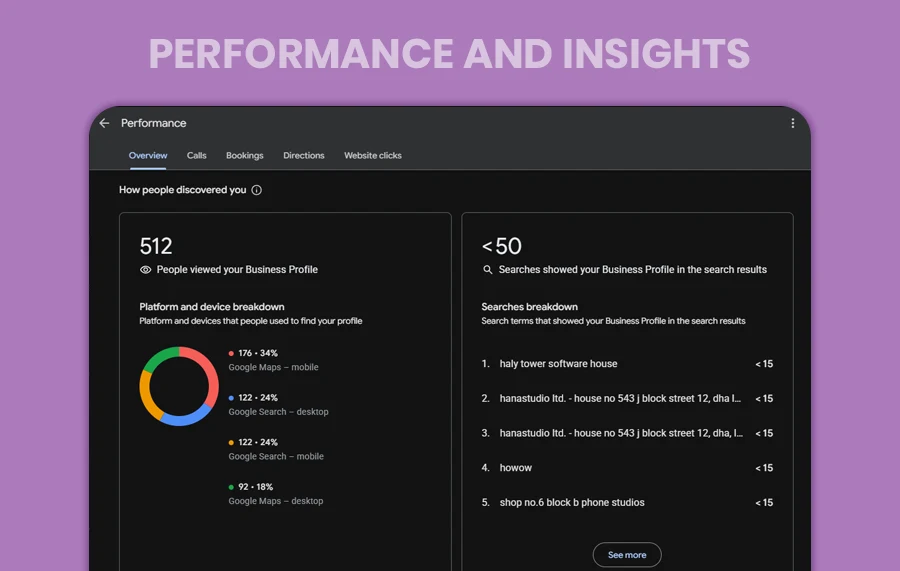
This section shows how people are actually finding and interacting with your profile: searches, profile views, phone calls, direction requests, and website clicks. Checking these numbers regularly helps you understand what’s working and what needs attention.
Q&A Section
Customers can publicly ask questions on your profile, and anyone including you can answer. Monitoring and answering these promptly prevents incorrect or outdated answers from sitting there unanswered.
Business Profile Settings
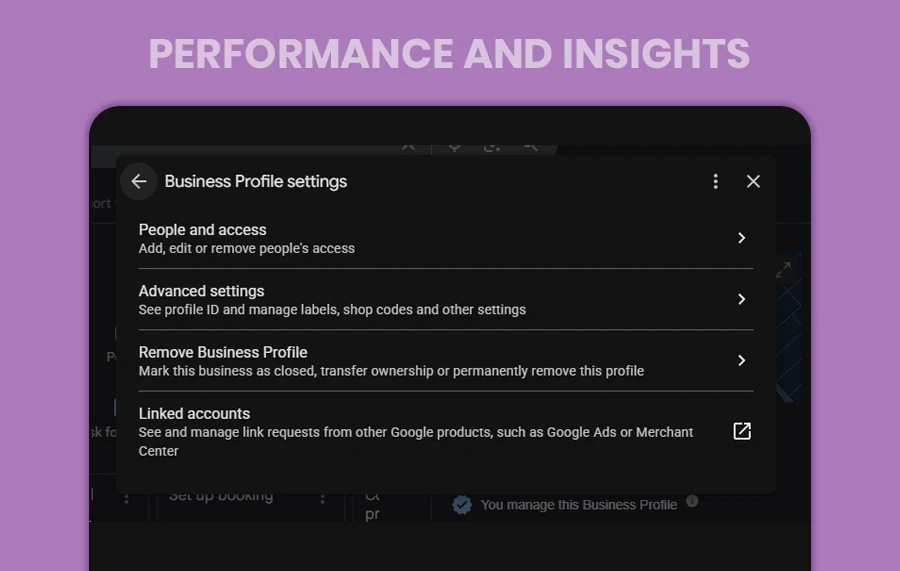
Under settings, you’ll manage:
- Owners and managers
- Verification status
- Notification preferences
- Profile access permissions
- General business profile settings
Keeping this section organized matters most for businesses with multiple team members managing the same listing.
Why the Google Business Profile Dashboard Matters for Local SEO
A complete, active profile directly influences your visibility in local search results. Businesses that keep their information accurate, post regularly, and respond to reviews tend to rank higher and earn more trust than those with outdated or half-filled profiles. In short, the dashboard isn’t just a listing it’s an ongoing local SEO tool.
Common Mistakes to Avoid
- Leaving the profile incomplete
- Wrong phone number or address
- No photos uploaded
- Ignoring reviews
- Outdated business hours
- Creating duplicate profiles
- Stuffing keywords into the business name
Google Business Profile Dashboard Checklist
- Add correct business details
- Upload quality photos
- Add products/services
- Respond to reviews
- Post regular updates
- Check insights monthly
- Keep hours updated
Conclusion
The Google Business Profile dashboard is one of the most powerful free tools a local business has but only if it’s actually used. Taking the time to fill it out completely, keep it updated, and check your insights regularly pays off in visibility, trust, and customer actions. If managing your profile alongside a broader local SEO strategy feels like a lot to keep up with, Howow Studio’s digital marketing team can help set up and manage your Google Business Profile as part of a complete online visibility plan.
FAQs
Is the Google Business Profile dashboard free to use? Yes, creating and managing a Google Business Profile is completely free for any business.
Do I need a website to use Google Business Profile? No. You can list your business, phone number, address, and hours even without a website, though having one adds credibility and gives customers more ways to reach you.
How long does verification take? It varies by method some businesses are verified instantly, while others (especially by mail or phone) can take a few days to a couple of weeks.
How often should I check my dashboard? A quick check weekly is ideal, with a deeper look at insights and reviews at least once a month.
Can I have more than one person managing the profile? Yes, you can add multiple owners or managers under the Business Profile settings.
Looking to grow your business’s local presence beyond just the dashboard? Howow Studio helps local businesses with websites, digital marketing, and everything needed to show up and convert online. Get in touch or message us on WhatsApp at +92 321 7122557.